
Two men and one woman in a computer lab working on their computers

Web Services

IT Web Services » ADA Compliance: Guidance on Web Accessibility

ADA Compliance: Guidance on Web Accessibility

ADA Compliance: Guidance on Web AccessibilityImage of ADA compliance symbols

Website accessibility is essential to meet every person's needs for accessing and navigating LAUSD websites. Everyone is responsible for meeting the legal requirements and guidelines as required by the Americans with Disabilities Act (ADA). To learn more about how to make your website accessible, please utilize the following resources below.
 

Examples of website accessibility...

See below for a list of websites / tools you can use to check for ADA compliance...  

Siteimprove

Siteimprove is an easy-to-use website accessibility scanning tool.
Direct links to their Chrome browser extension and their Firefox browser extension.

Wave

WAVE can identify accessibility and Web Content Accessibility Guideline (WCAG) errors, and also facilitates human evaluation of web content.
Direct links to their Chrome browser extension and their Firefox browser extension.

Axe

A fast, lightweight, yet powerful testing tool developed by Deque. It's features include Auditor, DevTools, Monitor, and a free Accessibility Browser Extension.
Direct links to their Chrome browser extension and their Firefox browser extension.


Screen Reader Tools For Testing

A screen reader is an essential assistive technology that converts on-screen digital text, images, and interface elements into synthesized speech or refreshable braille. Primarily used by blind or visually impaired individuals, it enables them to independently navigate websites, applications, and operating systems


The following are some screen readers that can be downloaded/installed to verify your site is screen reader compliant:

JAWS a prominent, proprietary screen reader that enables blind and low-vision users to navigate Windows PCs

NVDA (Non-Visual Desktop Access) allows blind and vision impaired people to access and interact with the Windows operating system and many third party applications.

Accessibility Examples

Alt Text

DO

DON'T

Describe the purpose in 5–15 words — what message does this image convey?

Don't start with "Image of…" or "Photo of…" — screen readers already say this

Set alt text to blank (alt="") for purely decorative images so screen readers skip them

Don't write 1–2 vague words like "design" or "border" for decorative images

For linked images, describe where the link goes

Don't reuse the same alt text across multiple images

Include any text shown in a graphic (flyers, banners, event images) in the alt text

Don't assume browser tools will catch burnt-in text — always review manually

Write a one-sentence summary as alt text for videos

Don't leave video alt text blank


Examples

DO Example

DON'T Example

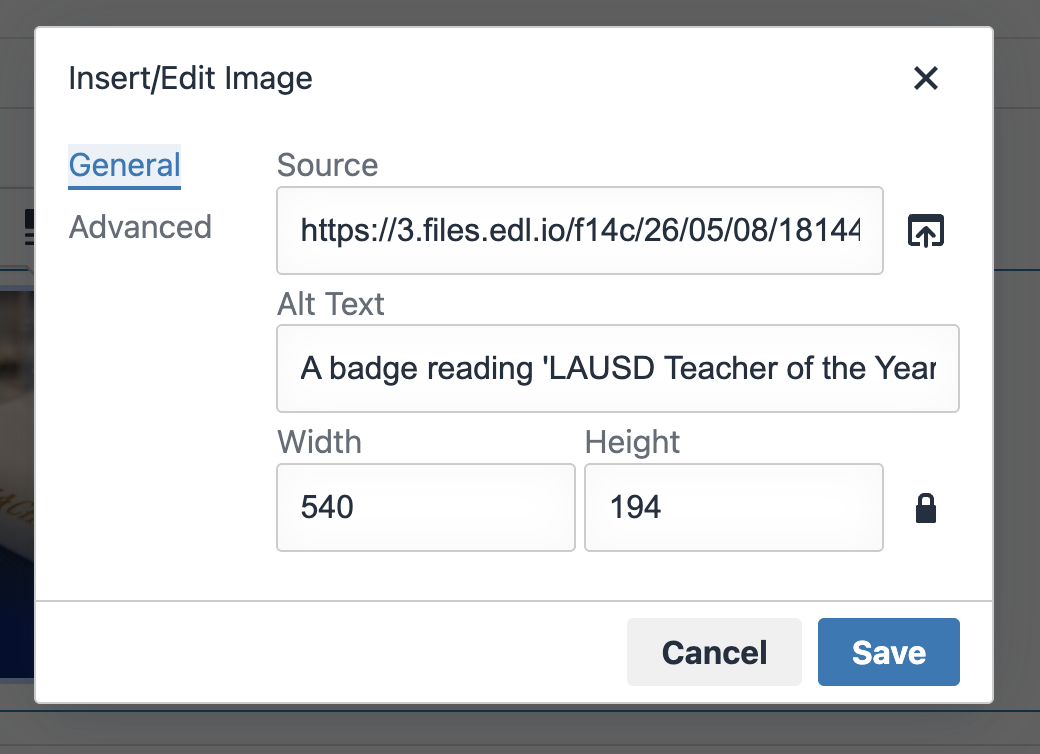
Alt text: "A badge reading 'LAUSD Teacher of the Year' on a certificate.


Screenshot of Edlio's Insert/Edit Image modal showing a completed alt text field


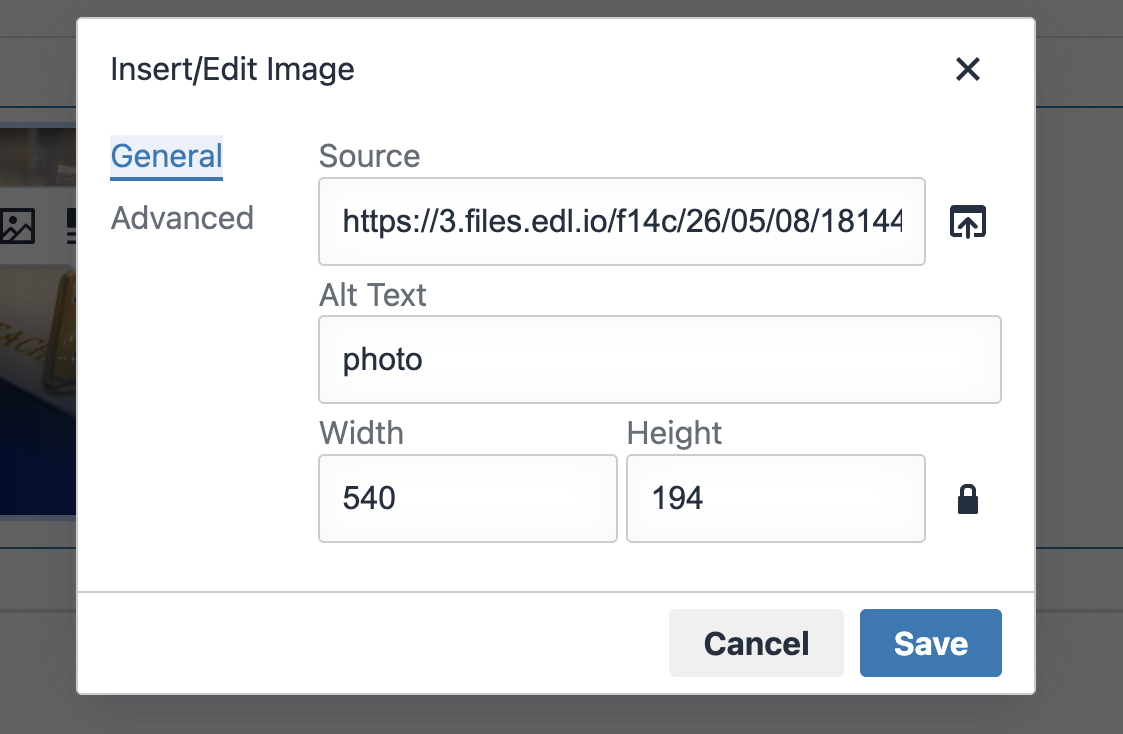
Alt text: "image1" or "photo"

A screenshot of an image editing interface with fields for source and alt text.

Burnt-In Text Alert

Text that appears inside a graphic (flyers, banners, event images) MUST be written out in the alt text. Browser tools cannot detect this — it must always be reviewed manually

Burnt-In Text Examples
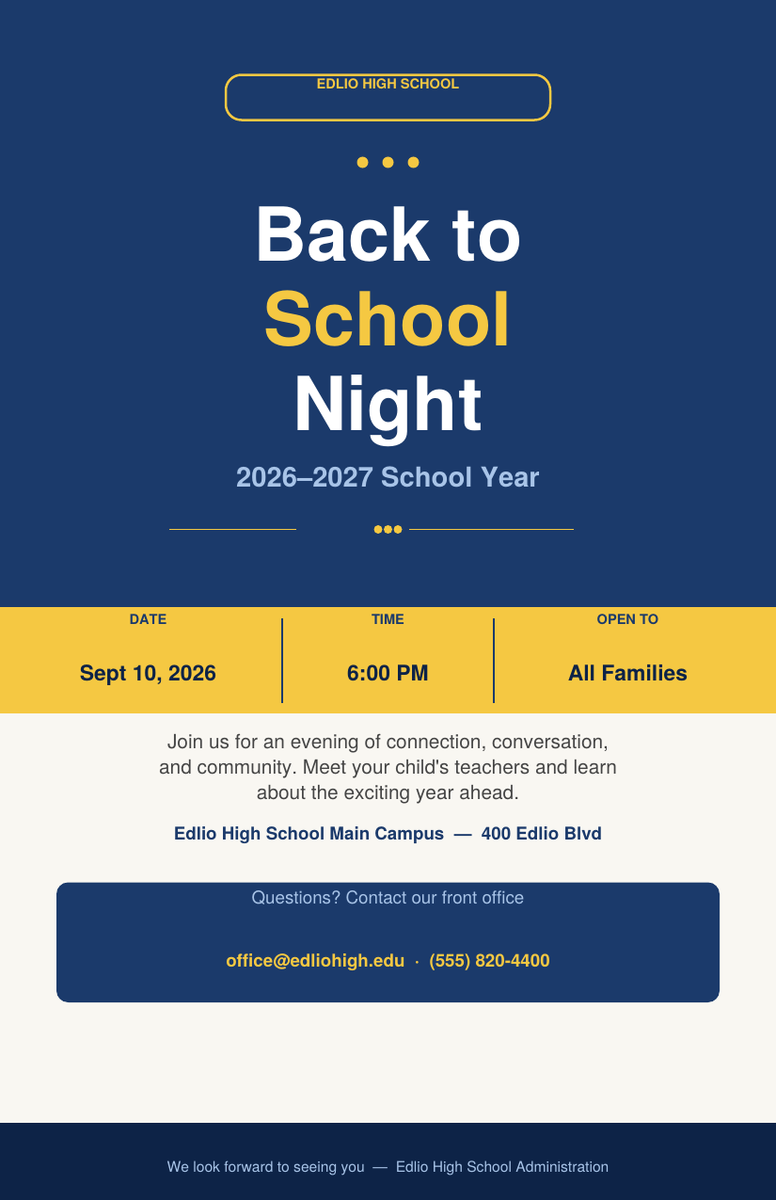
Back to School Night flyer with event details and contact information.

DO Example

DON'T Example

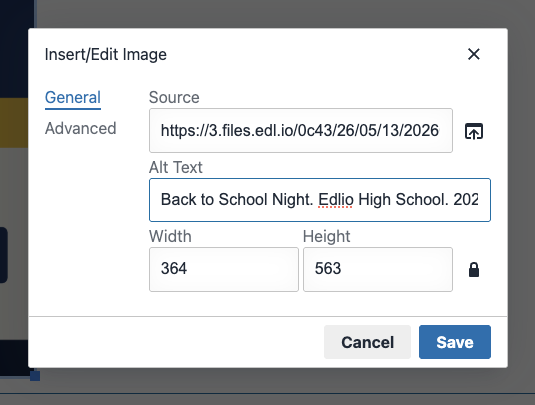
A flyer image with alt text that reads: "Back to School Night, Sept 10, 6pm" — all visible text from the flyer is included


Popup for editing an image with source and alt text input fields.

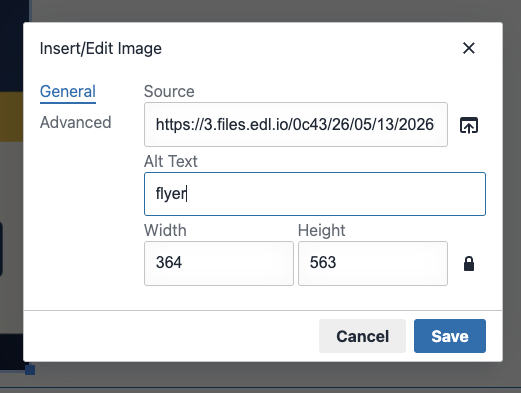
A flyer image with alt text left blank or just labeled "flyer"


Popup for editing an image with a simple alt text input field.

PDFs

DO

DON'T

Build content as a native Page Block whenever possible

Don't upload untagged or scanned PDFs — screen readers can't read them

Add a written summary on the page, then link a tagged PDF

Don't assume Edlio's Accessibility Report will catch PDF errors — it can't scan PDFs

Put PDF content in a collapsible block as a fallback option

Don't link a PDF without any on-page context or summary


Examples

DO Example

DON'T Example

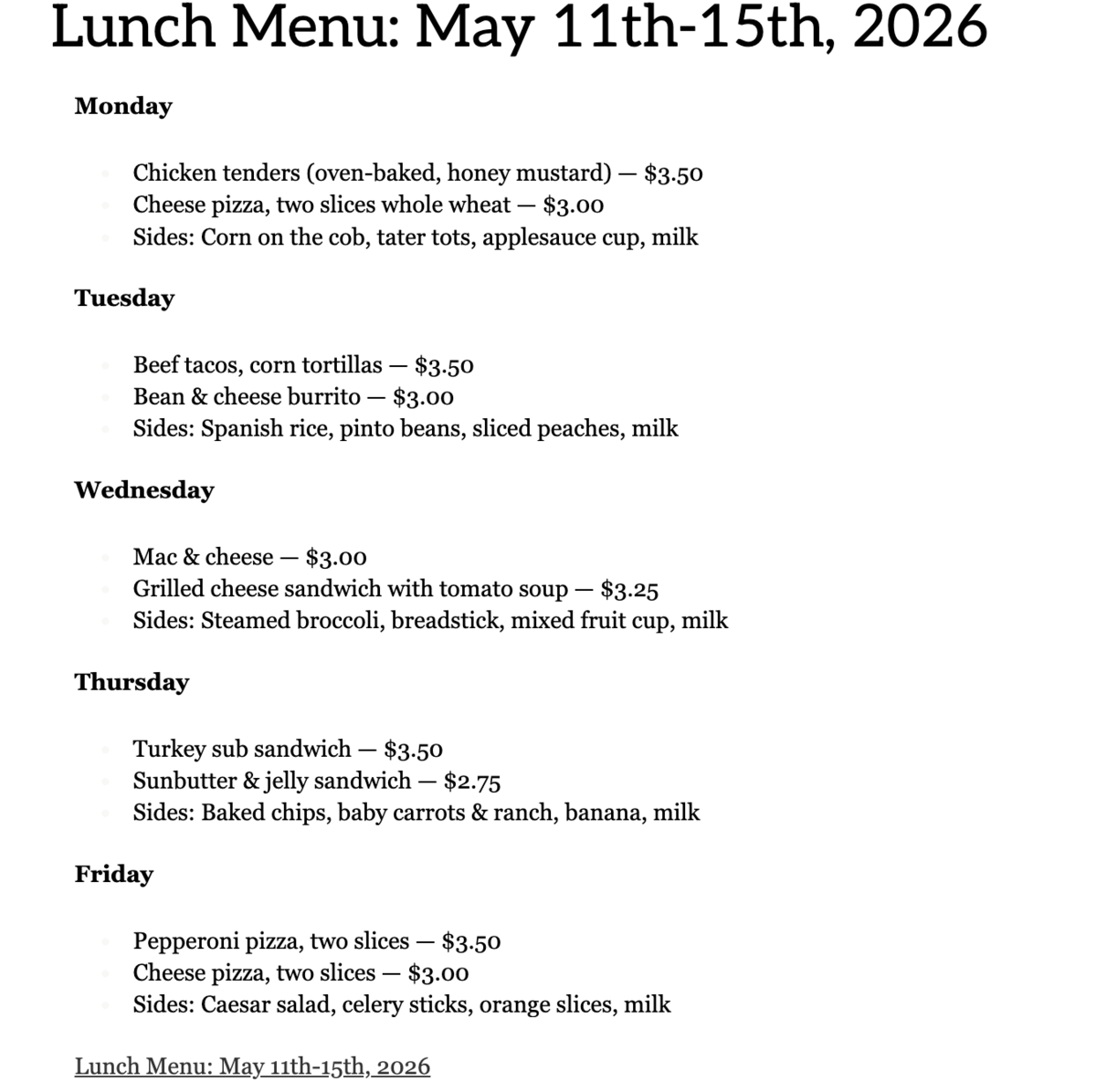
A page with the full lunch menu typed out as text, with a tagged PDF linked below for download


Screenshot of Edlio Page, describing the lunch menu of the week for May 11th-15th,2026

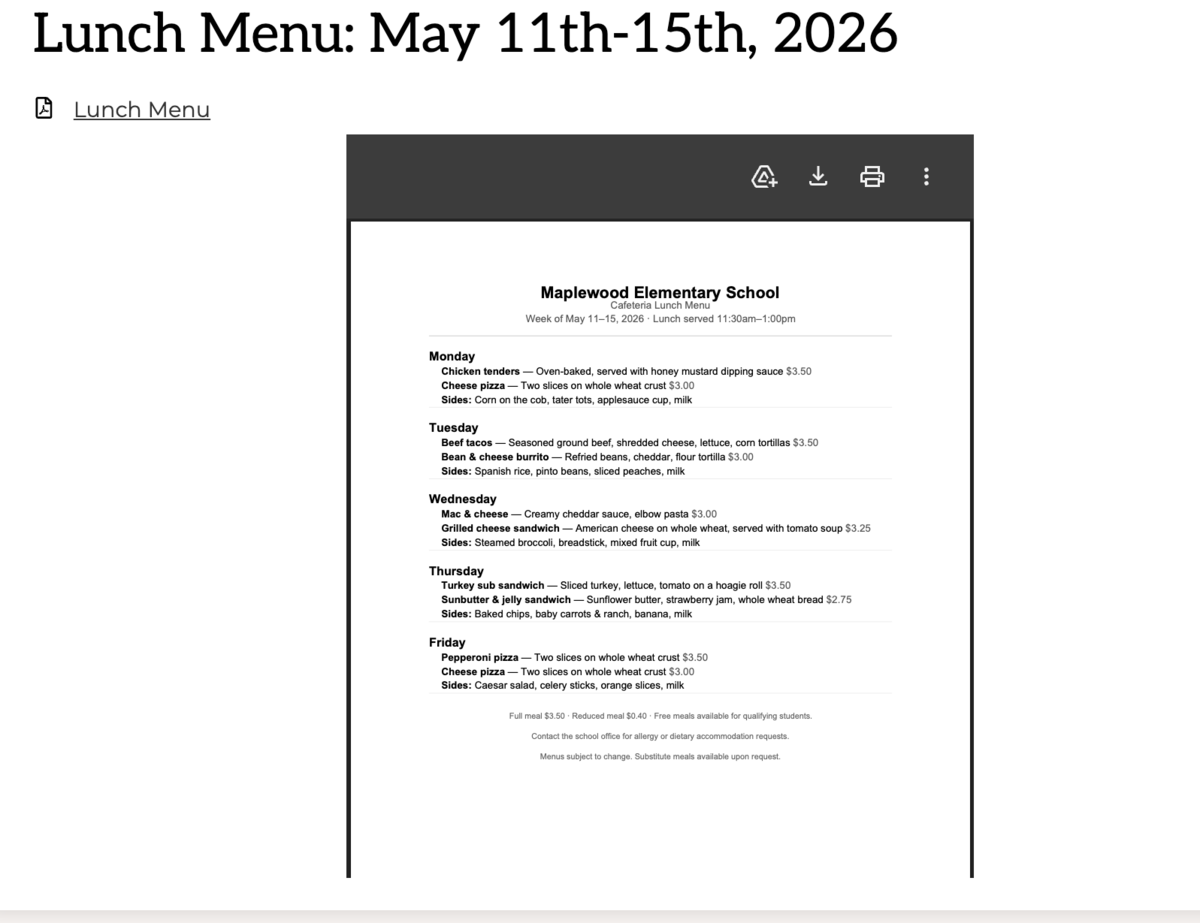
A scanned image of the lunch menu uploaded as a PDF with no page summary


Weekly lunch menu for Maplewood Elementary School with daily meal options.


Check a PDF: pave-pdf.org

Links

DO

DON'T

Use descriptive link text: "Download the Student Handbook"

Avoid phrases like "Click here" or "See this" — screen readers read links out of context


Examples

DO Example

DON'T Example

Use descriptive link text


Visit LAUSD Website

Avoid phrases like "Click here" or "See this document"


Learn more about this document

Headings

DO

DON'T

Use H1 → H2 headings in order to structure every page

Avoid skipping heading levels or using bold text instead of real headings

Edlio Tools

Tool

What It Does

How To Use It

Accessibility Report

Scans your pages for WCAG AA errors — alt text, contrast, heading structure

Run it regularly from your dashboard; issues are sorted by severity

Video Captions

Auto-generates closed captions for every video uploaded via Edlio

Confirm the language on upload; allow up to 1 hour to generate


Quick Wins — Start Here

#

Action

How

1

Audit your homepage images

Check every image in Shuffles for alt text — especially flyers and banners with burnt-in text

2

Fix your link text

Search your pages for "click here" and replace with descriptive phrases

3

Run the Accessibility Report

Start with your 5 most-visited pages — fix issues by severity

4

Replace your most-used PDFs

Convert to Page Blocks so screen readers can access the content

5

Enable captions on all videos

Confirm language on upload — captions generate within 1 hour

6

Do a keyboard test

Tab through your site — every link, button, and form must be reachable without a mouse